Interactive demo · SellM8 Invoice
From invoice to paid
Twelve steps through SellM8 Invoice with sample data: a new invoice, sending it, automatic reminders, a payment found in the bank statement, and the month-end pack for the accountant. The program is not open to users yet — these screens come from its working version.
Click the highlighted spot on the screen or use the "Next" button.
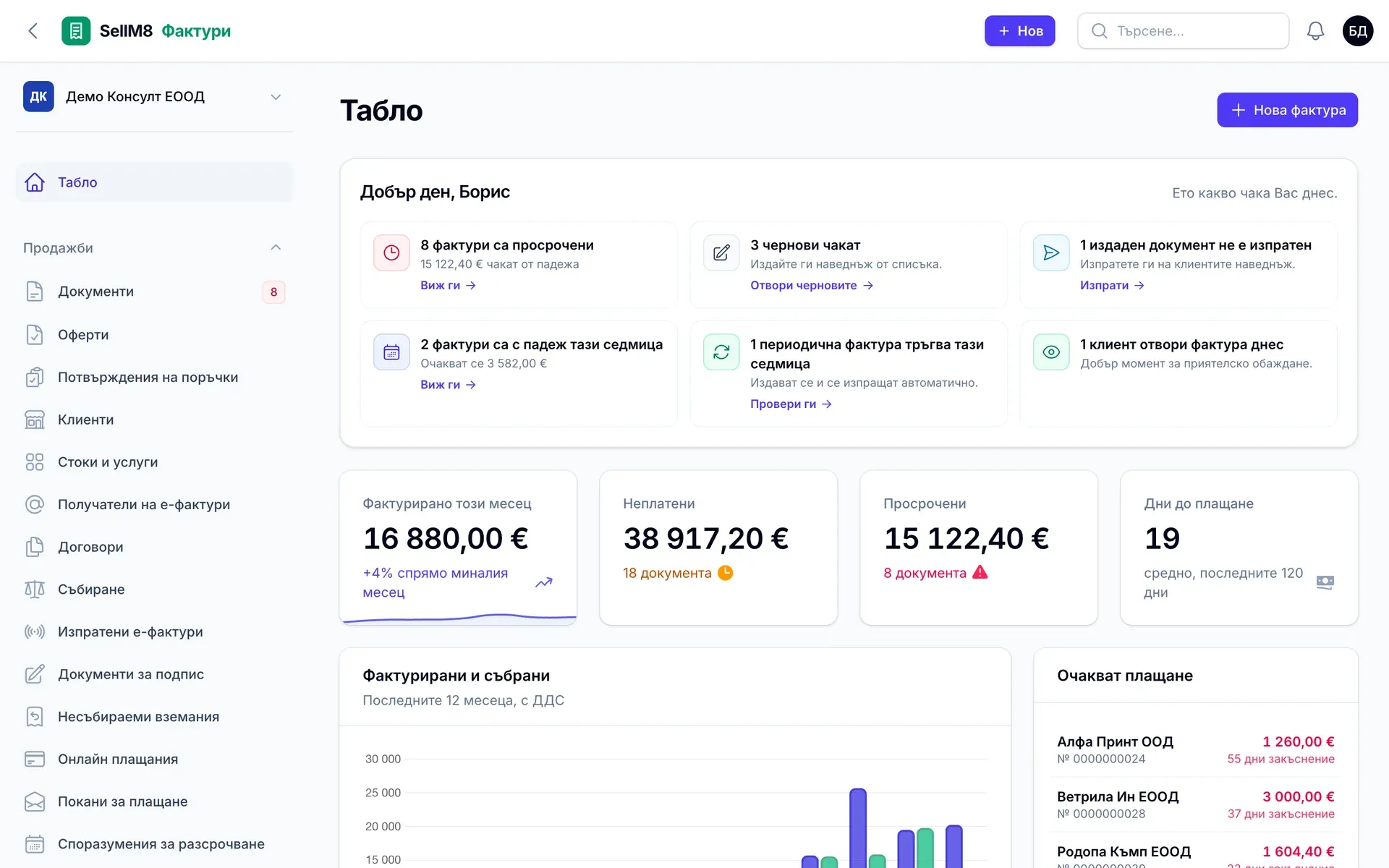
Step 1 of 12
What is waiting today
The dashboard tells you what is unpaid, what is overdue and how many days customers take to pay on average. Open "Документи" (Documents).
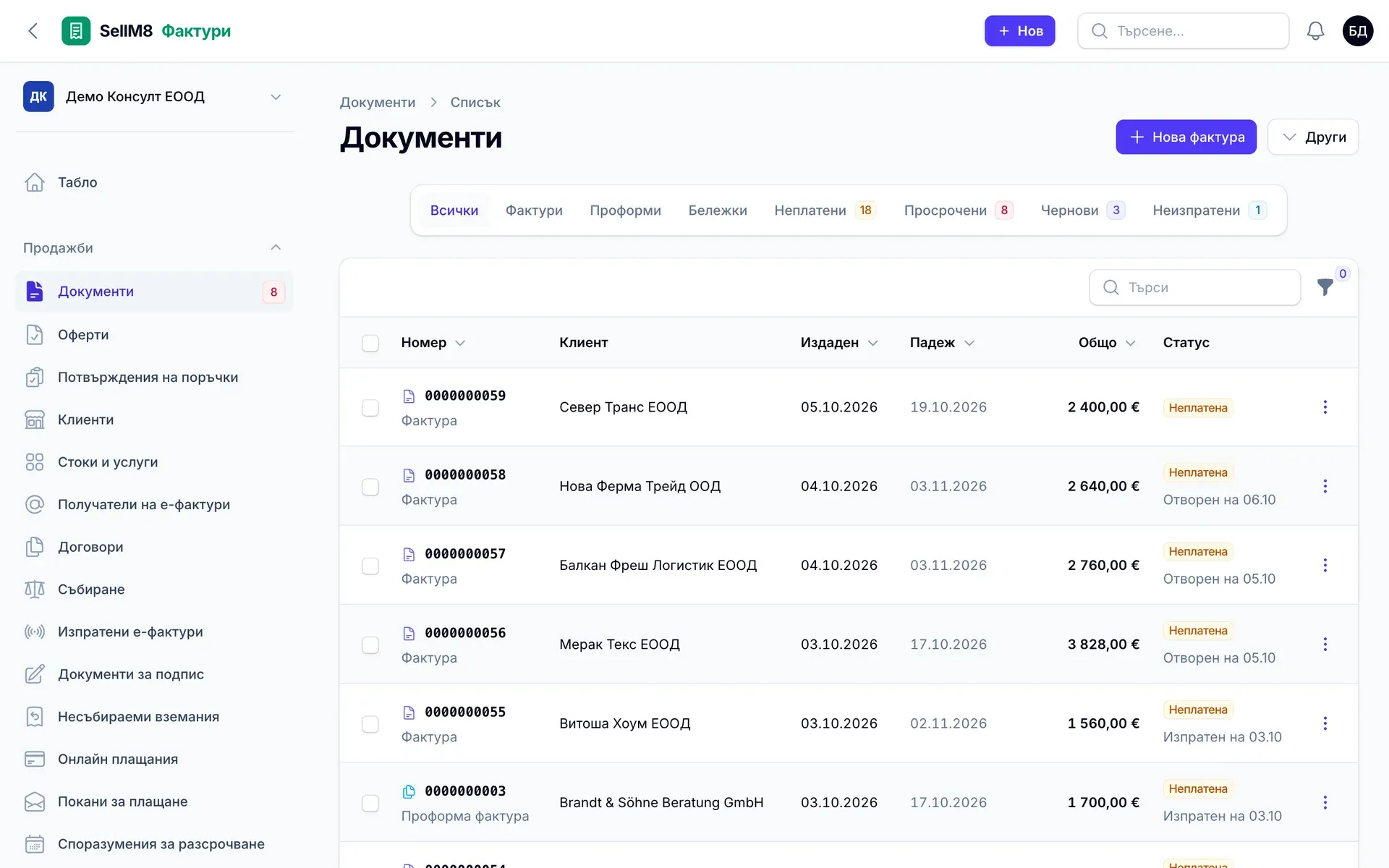
Step 2 of 12
All documents in one place
Invoices, proformas and credit notes, with tabs for the unpaid and the overdue. Sent documents show when the customer opened them. Click "Нова фактура" (New invoice).
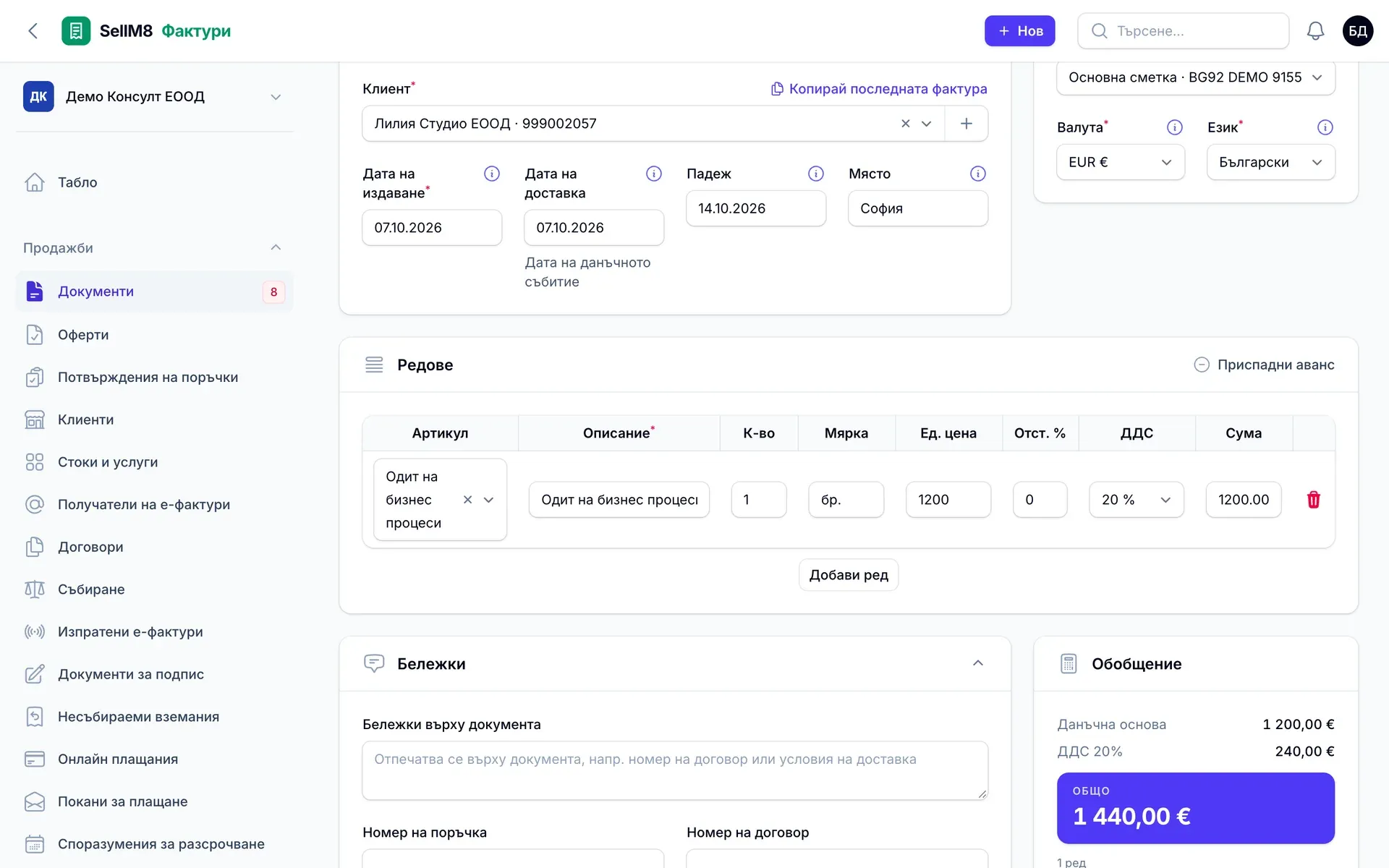
Step 3 of 12
Customer and first line
The customer is chosen and the line comes from the list of goods and services — with its price and VAT. Click "Добави ред" (Add line).
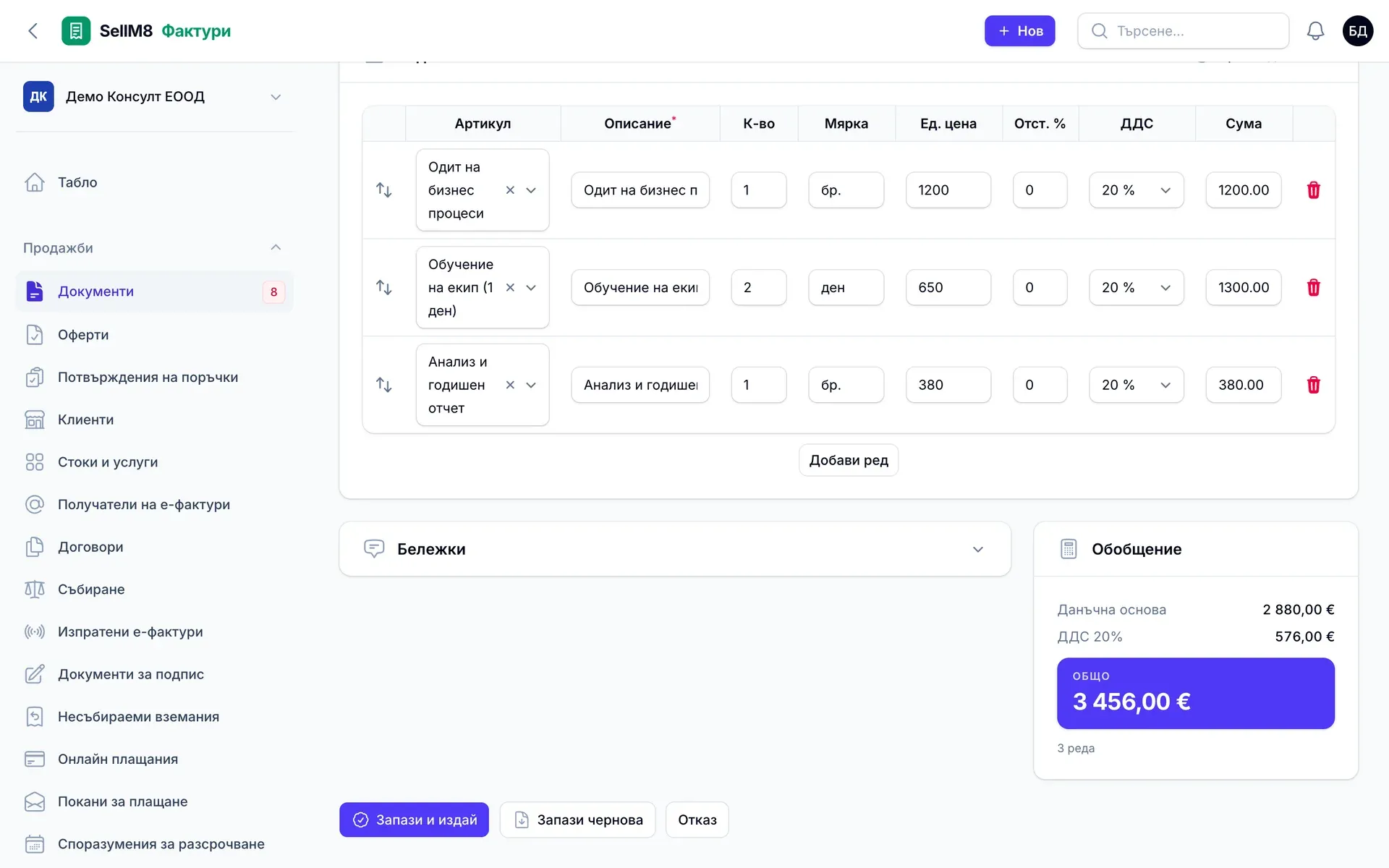
Step 4 of 12
Three lines, total worked out
The tax base, the VAT and the total of €3,456.00 are calculated for you. Click "Запази и издай" (Save and issue).
Step 5 of 12
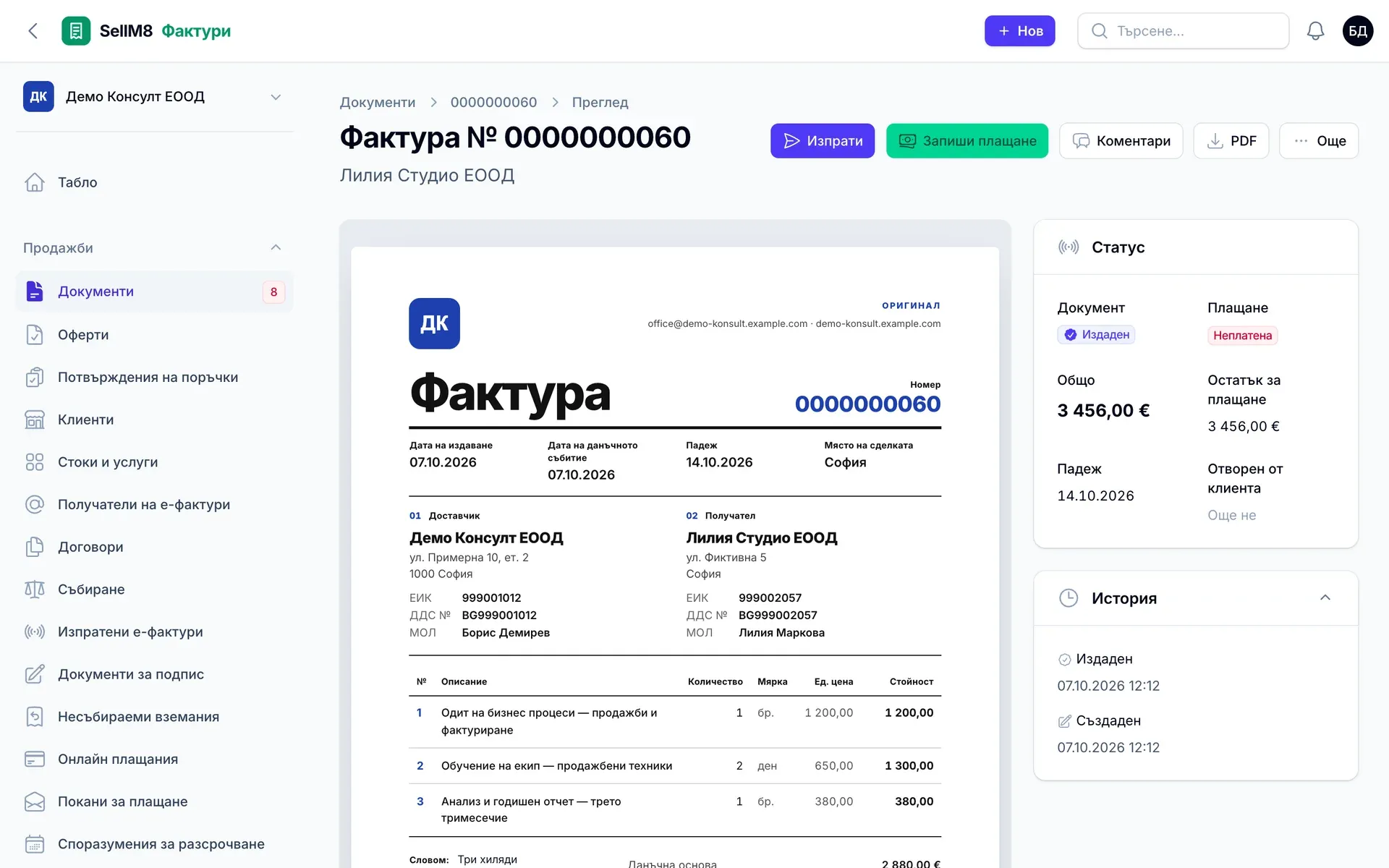
The invoice is issued
It has been given the number 0000000060 and is in the chosen design. Click "Изпрати" (Send).
Step 6 of 12
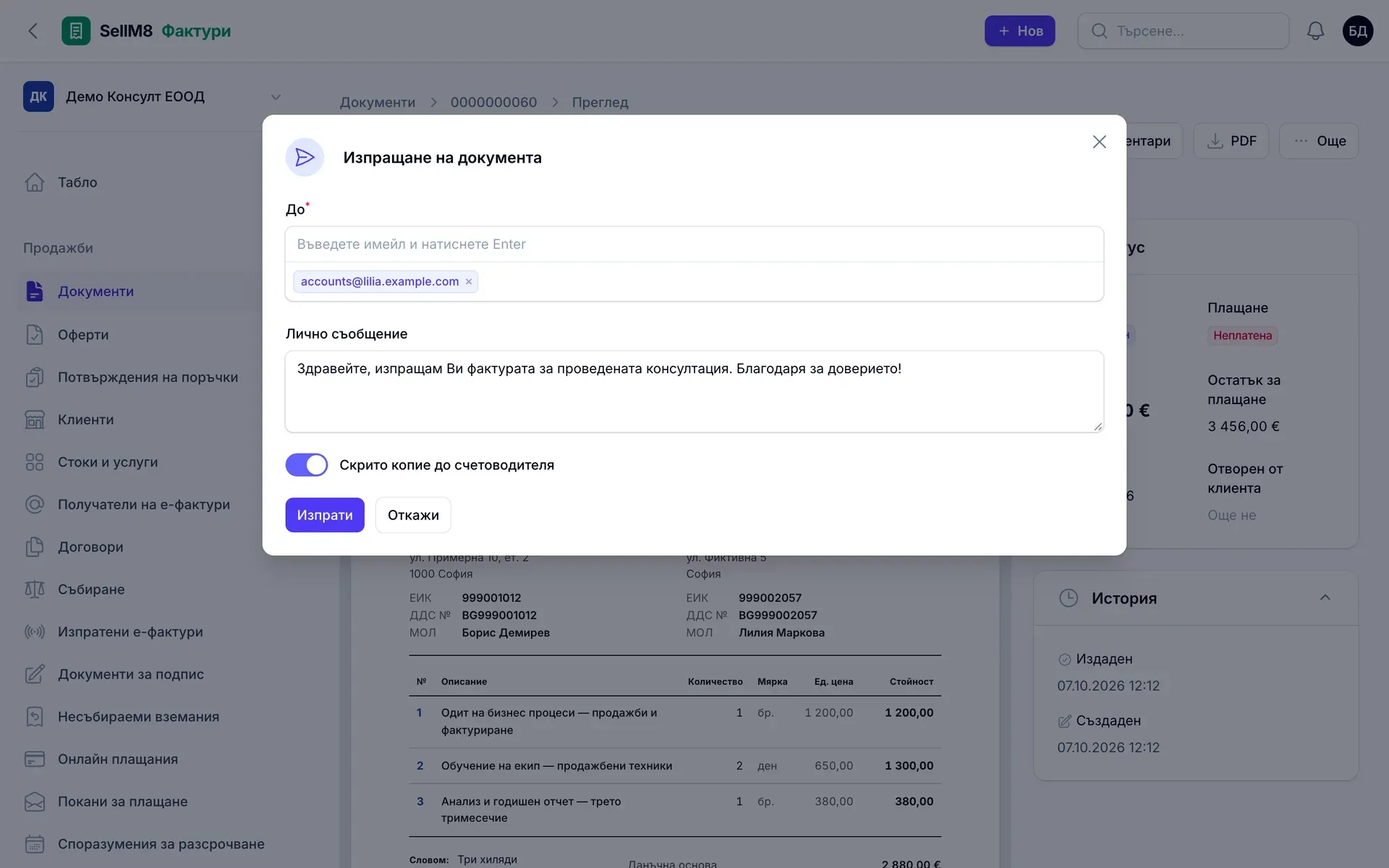
Sending to the customer
The customer's address is filled in, there is a personal message, and the accountant gets a blind copy. Click "Изпрати" (Send).
Step 7 of 12
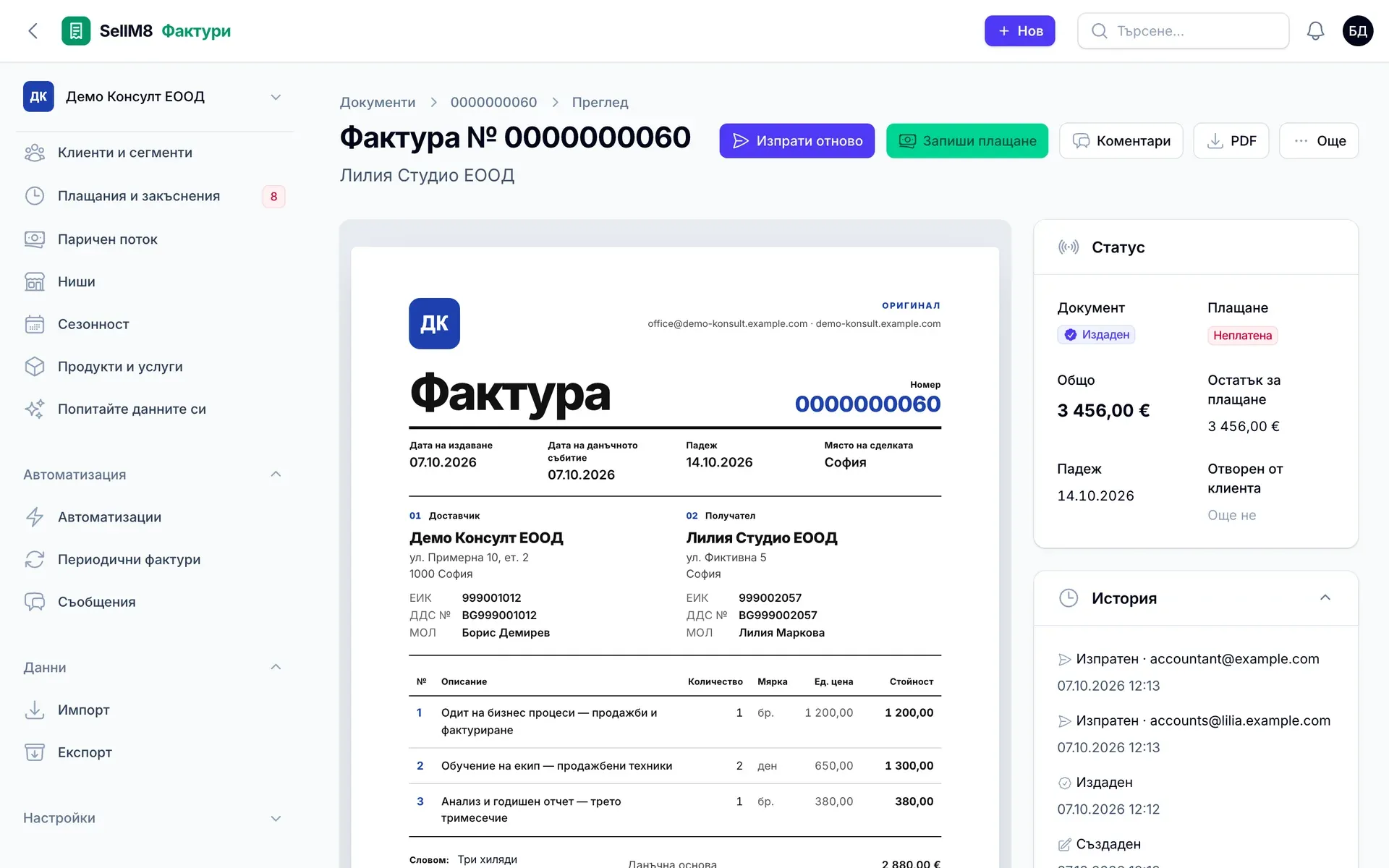
It has been sent
The history records when it was sent and to whom. If the customer does not pay on time, the program reminds them by itself — open "Автоматизации" (Automations).
Step 8 of 12
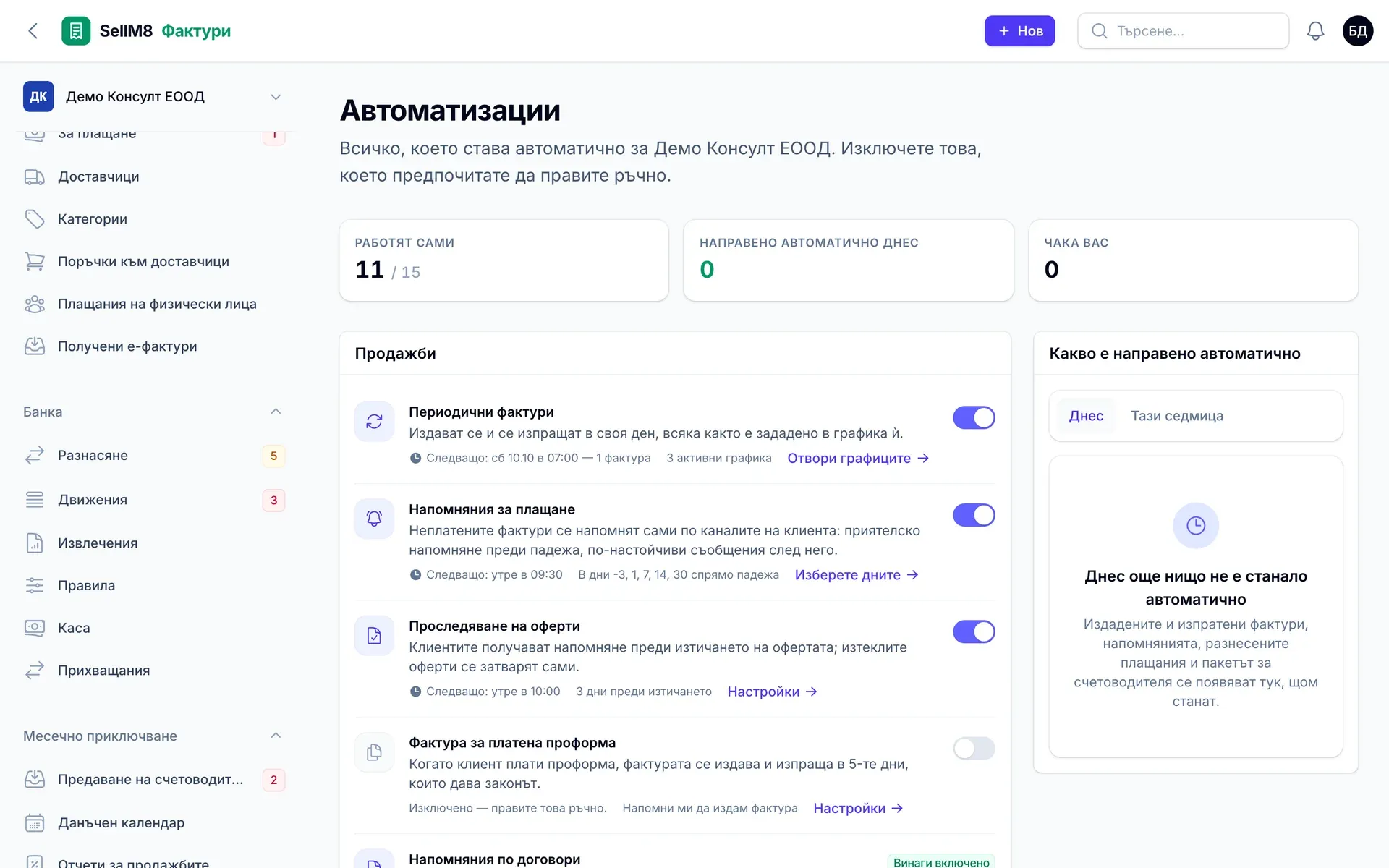
Reminders without you
Unpaid invoices are chased automatically: 3 days before the due date and 1, 7, 14 and 30 days after it. On the right is what was done automatically today. Open "Движения" (Transactions) in the "Банка" (Bank) section.
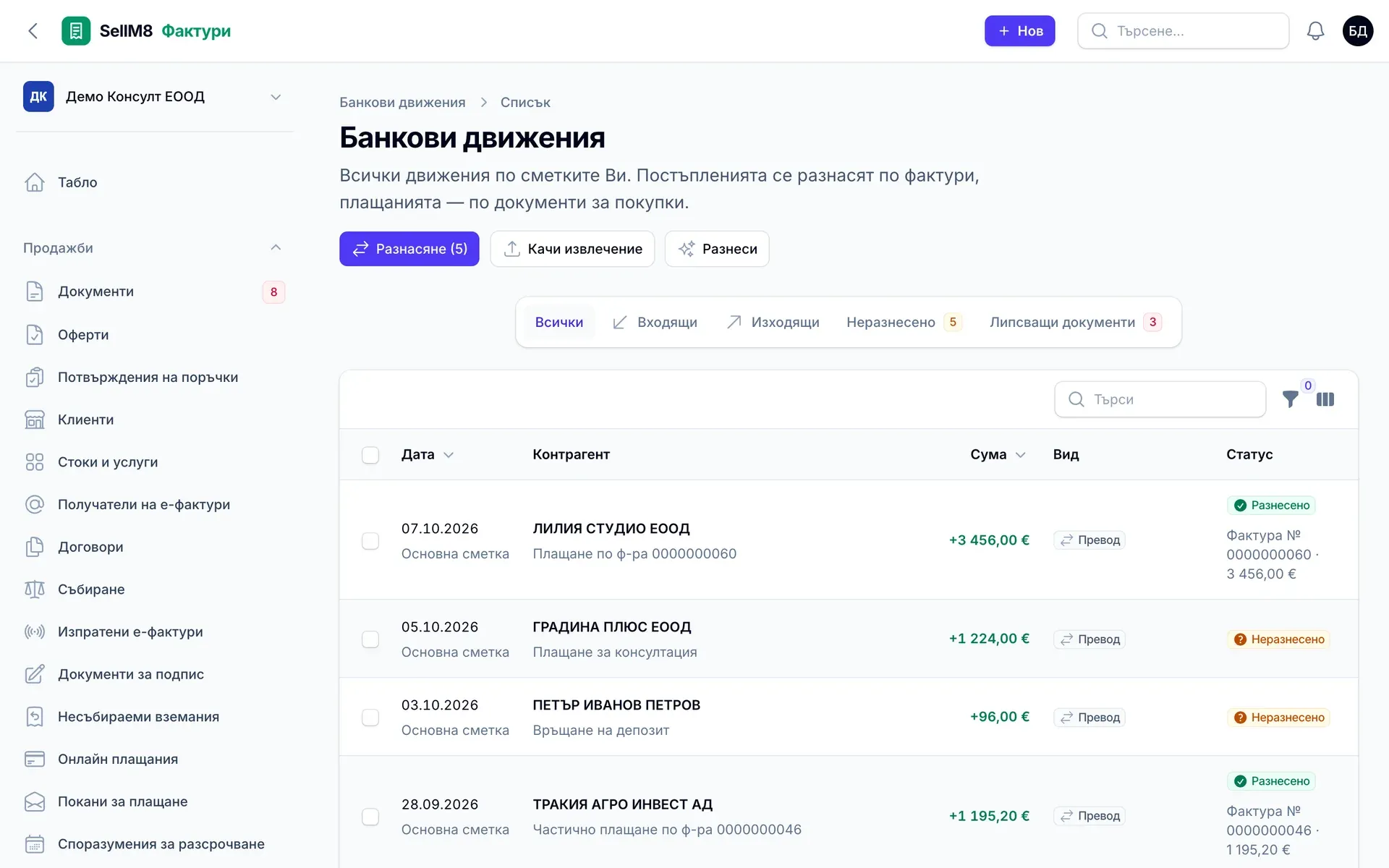
Step 9 of 12
The payment is found in the statement
The customer has paid. When the bank statement was uploaded, the program recognised the payment by the invoice number and matched it. Open "Документи" (Documents).
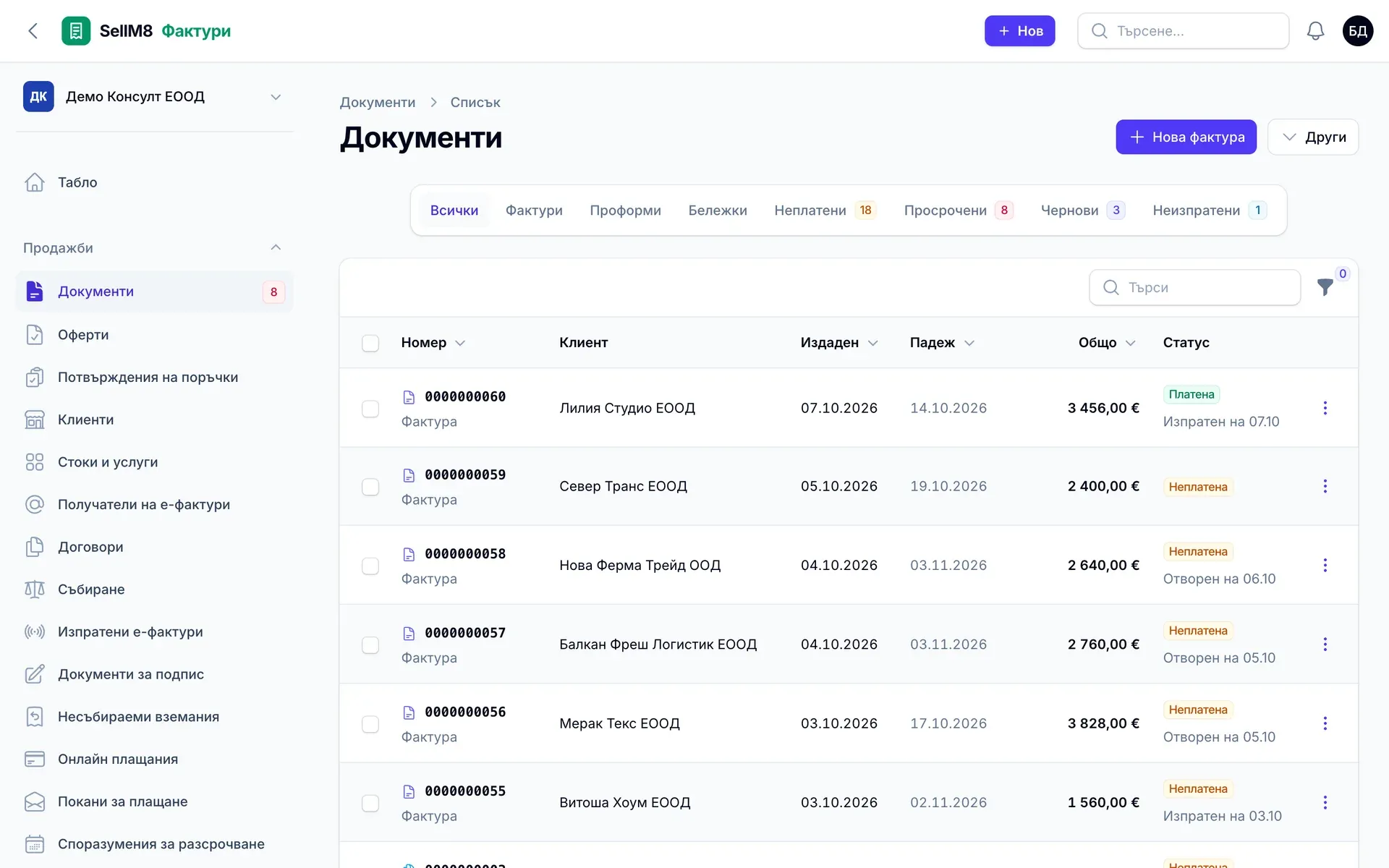
Step 10 of 12
The invoice is paid
In the list its status is now "Платена" (Paid) — nothing ticked off by hand. Open the invoice.
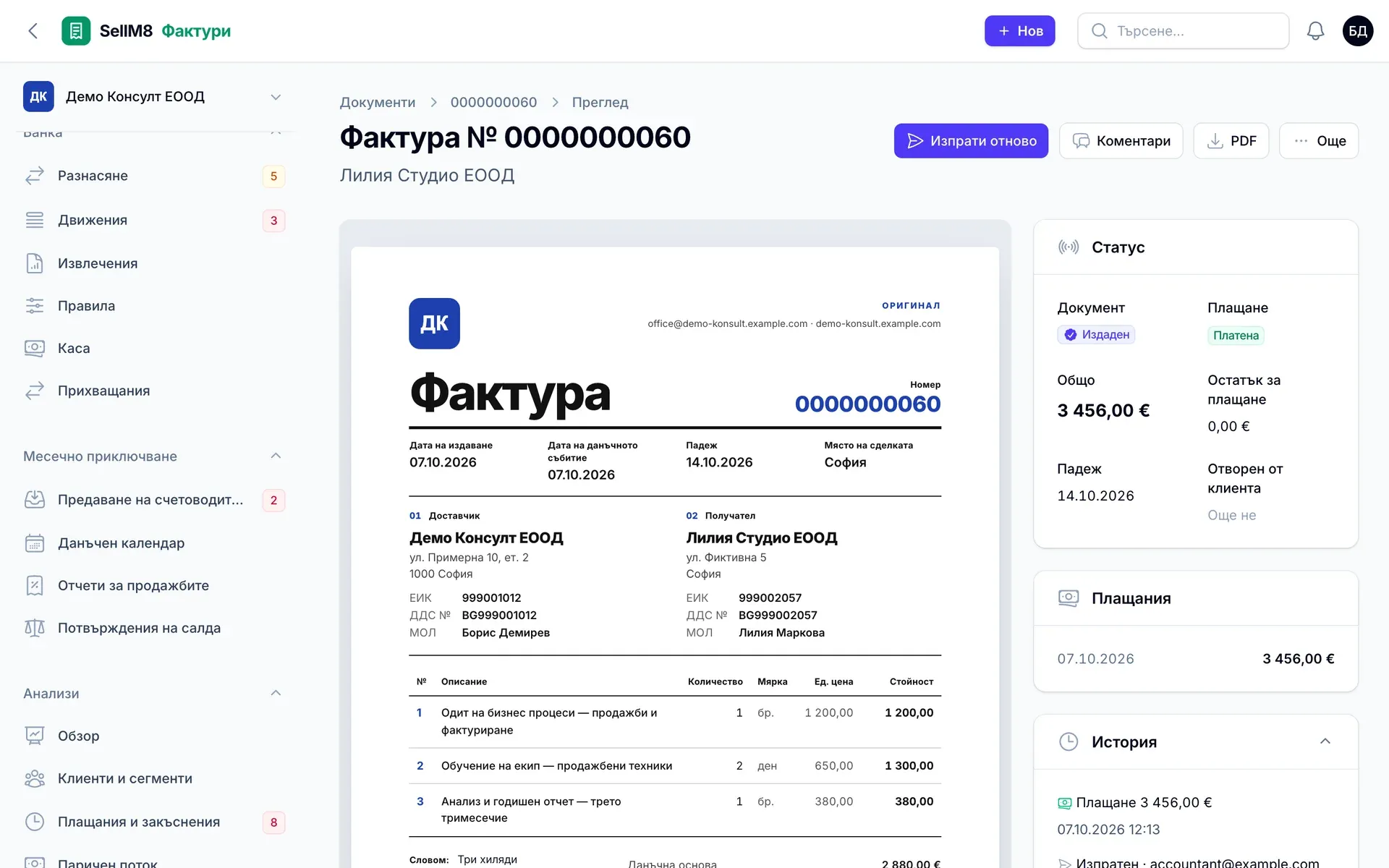
Step 11 of 12
The payment is on the invoice
You can see the payment with its date and amount, and the balance is €0.00. What remains is the end of the month — open "Предаване на счетоводителя" (Hand over to the accountant).
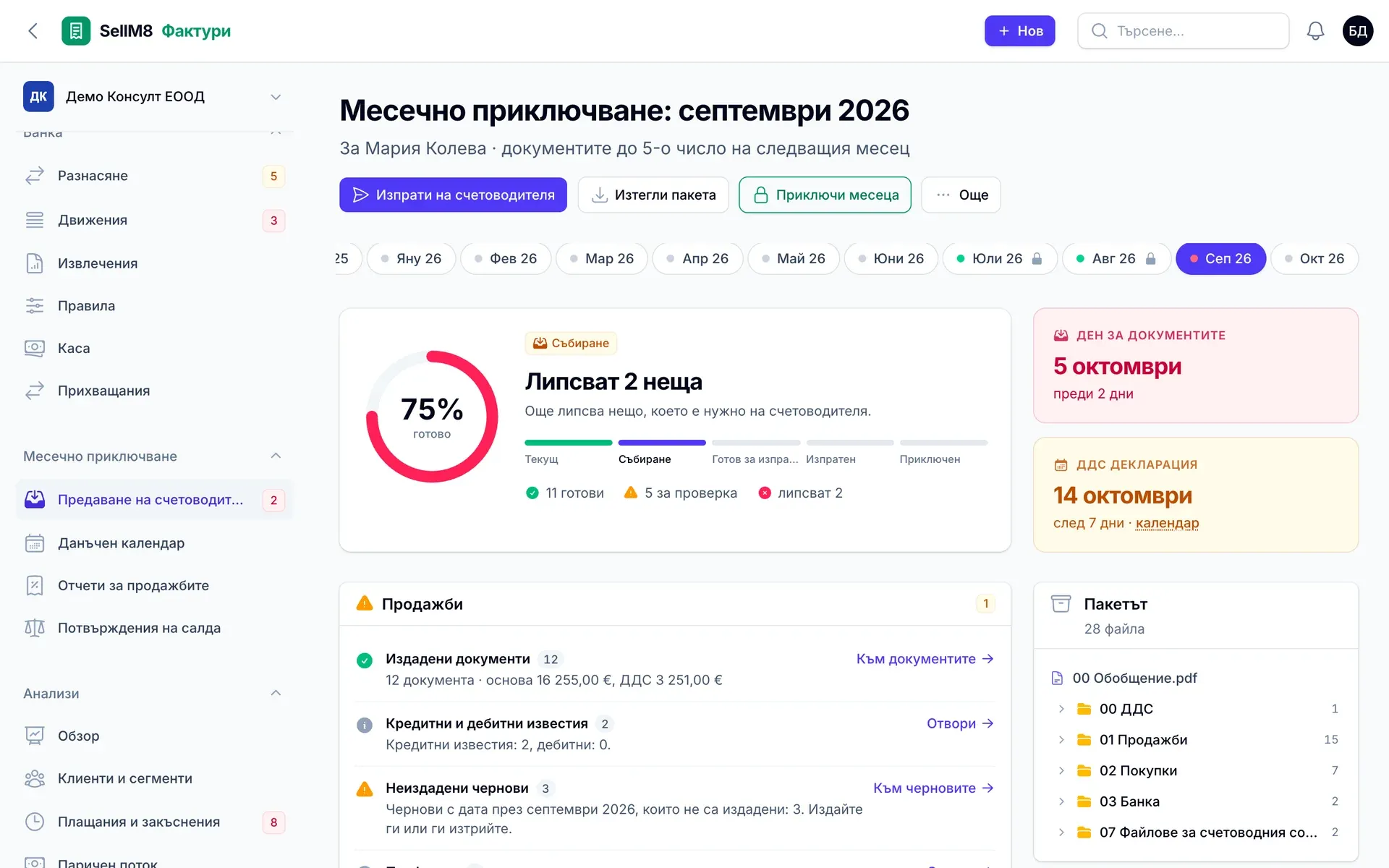
Step 12 of 12
The pack for the accountant
For every month the program shows what is missing and puts the pack together: sales, purchases, bank and files for the accounting software. You send it with one button.
Sign up for early accessThe screens come from the program itself, captured with sample data. The interface is shown in Bulgarian.
Sign up for early access
Leave your contact details and we will write as soon as access opens, with an invitation to a demo using your own invoices.
- Reply within one working day
- No obligation to buy
- Demo with your own examples