Interactive demo · SellM8 Catalog
From the catalogue to the enquiry
Twelve steps through SellM8 Catalog with sample data: the customer finds a product by category, sees its code, price and stock and sends an enquiry; you receive it in the admin panel and decide with one switch whether prices are shown.
Click the highlighted spot on the screen or use the "Next" button.
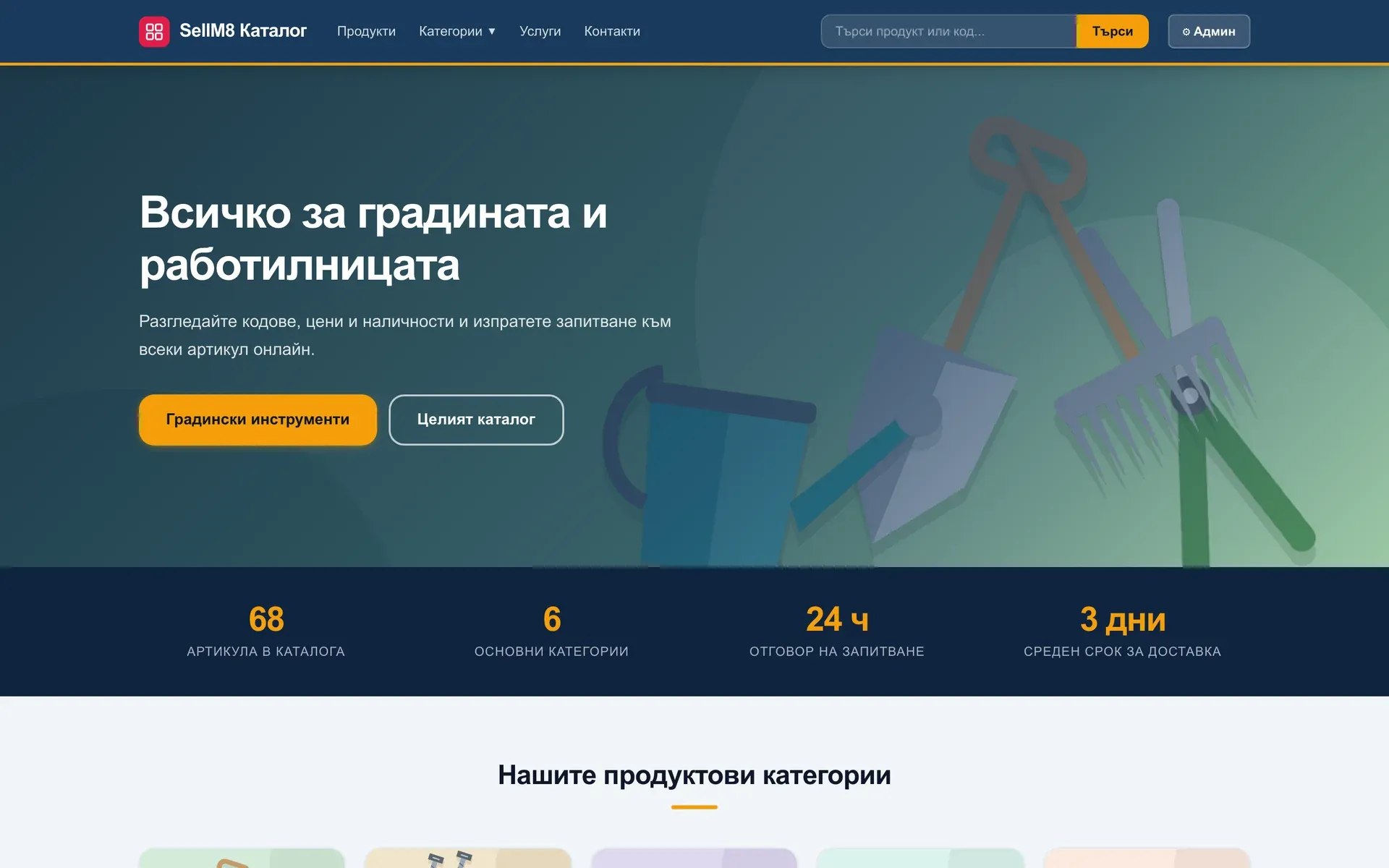
Step 1 of 12
The catalogue home page
A banner, the main categories and a search by name or code. Click "Градински инструменти" (Garden tools).
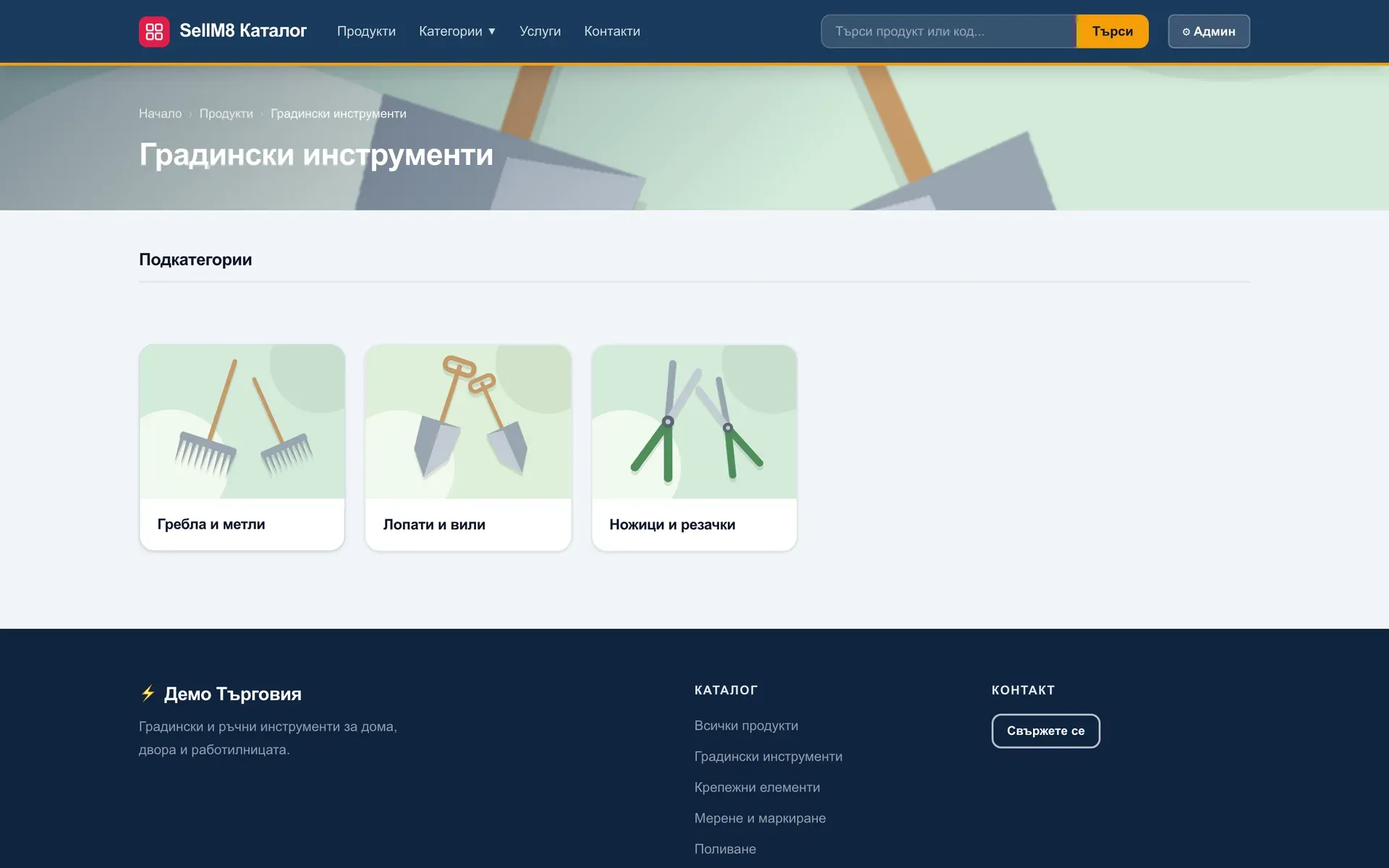
Step 2 of 12
A category with subcategories
The category is split into subcategories with pictures. Click "Лопати и вили" (Spades and forks).
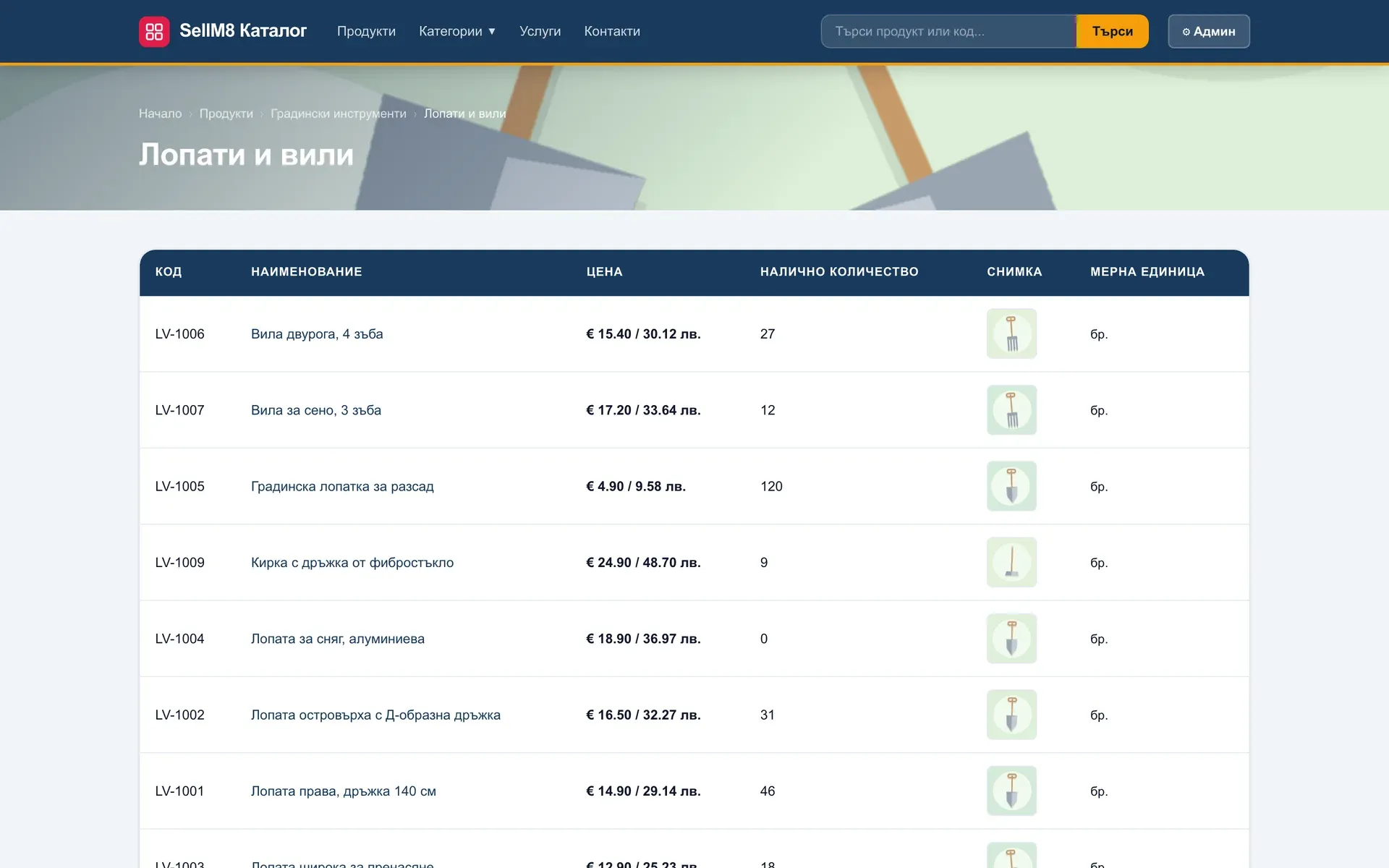
Step 3 of 12
A table with code, price and stock
Every item has its code, price, quantity in stock and a picture — the way trade customers look for them. Click "Лопата права, дръжка 140 см" (straight spade).
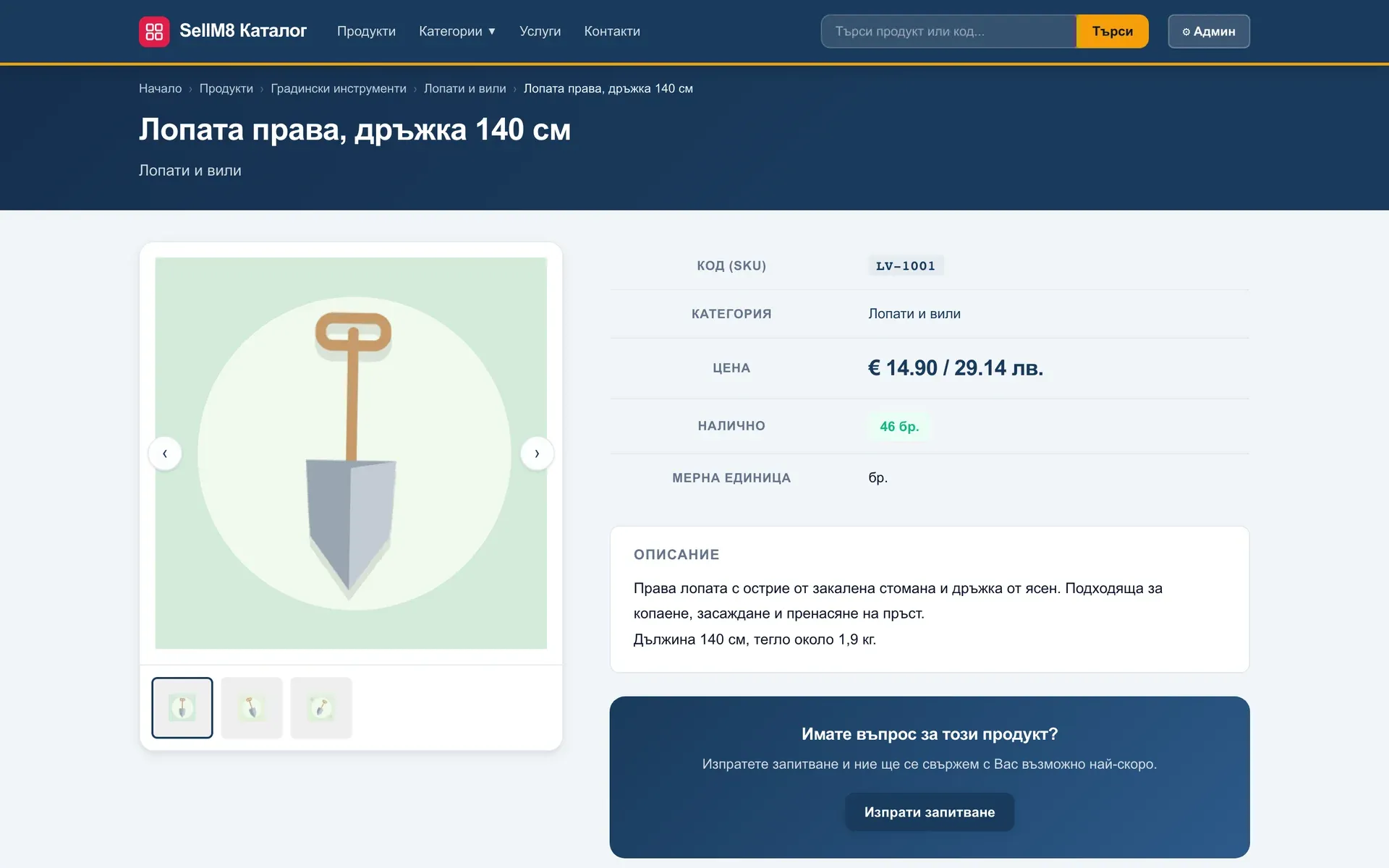
Step 4 of 12
The product page
Pictures, code, price, stock and a description. There is no cart — the customer asks. Click "Изпрати запитване" (Send enquiry).
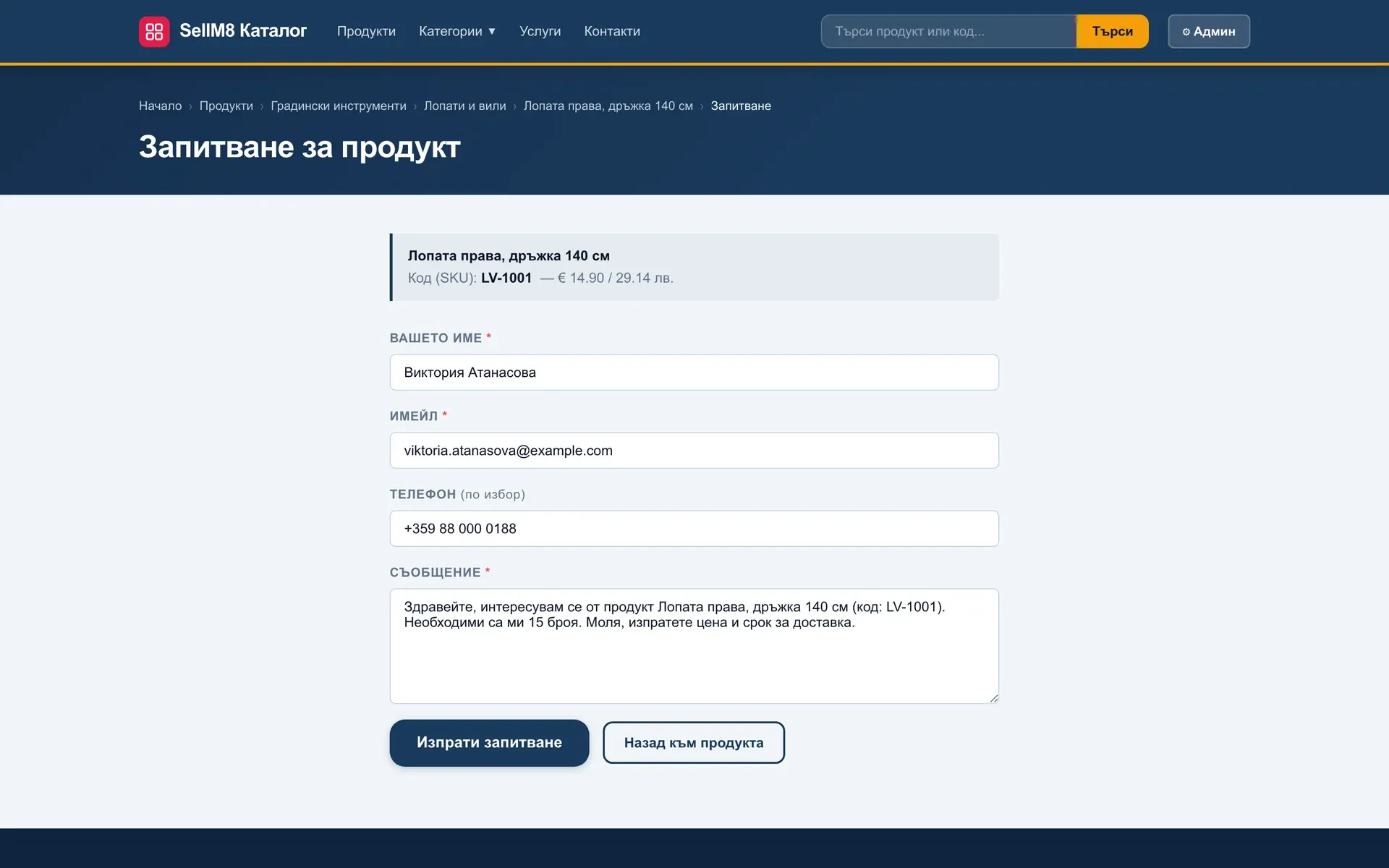
Step 5 of 12
An enquiry about the product
The product and its code are already in the form; the customer adds a name, contact details and a question. Click "Изпрати запитване" (Send enquiry).
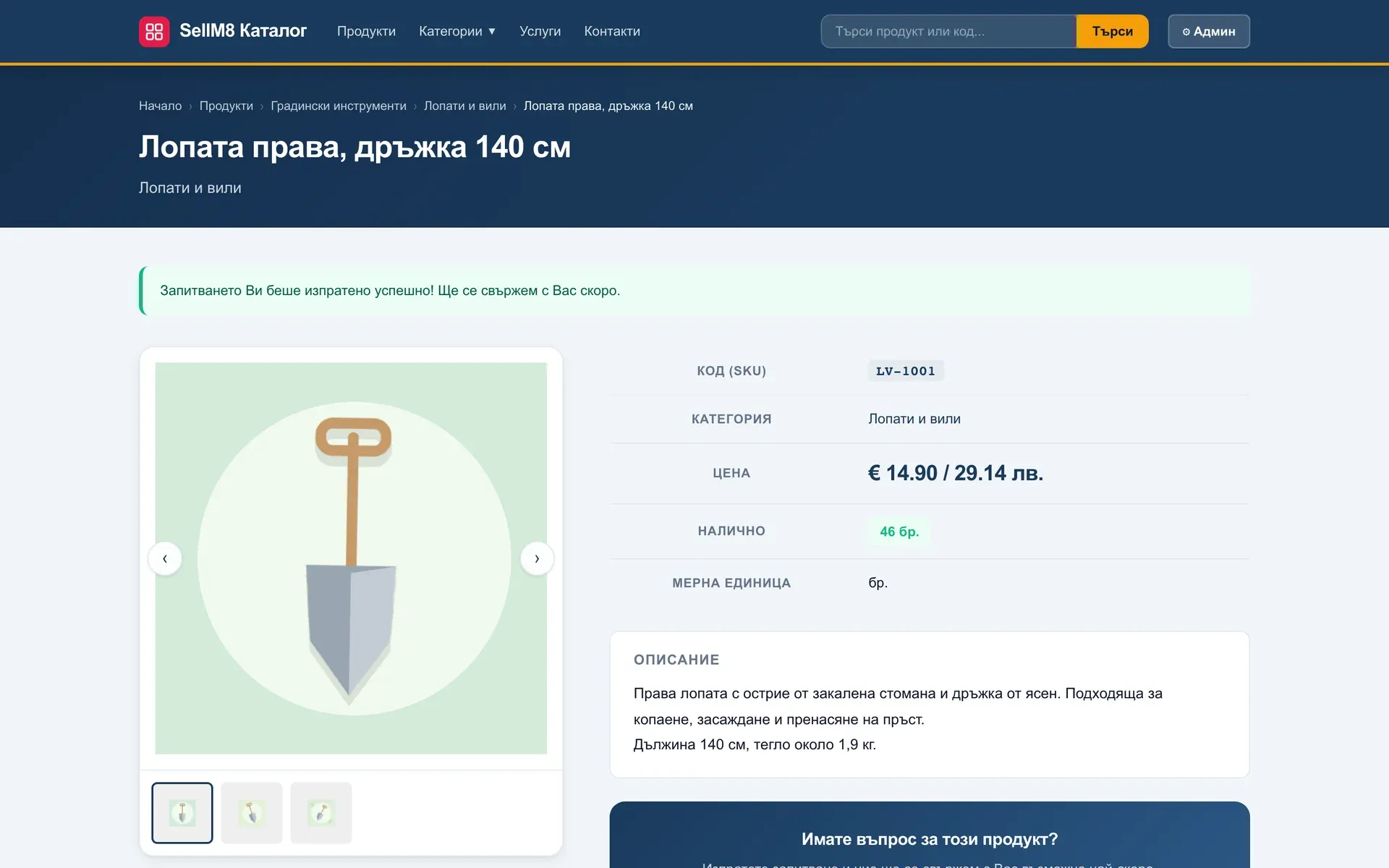
Step 6 of 12
The enquiry is sent
The customer sees a confirmation. The "Админ" (Admin) button at the top is shown only to the signed-in owner — click it.
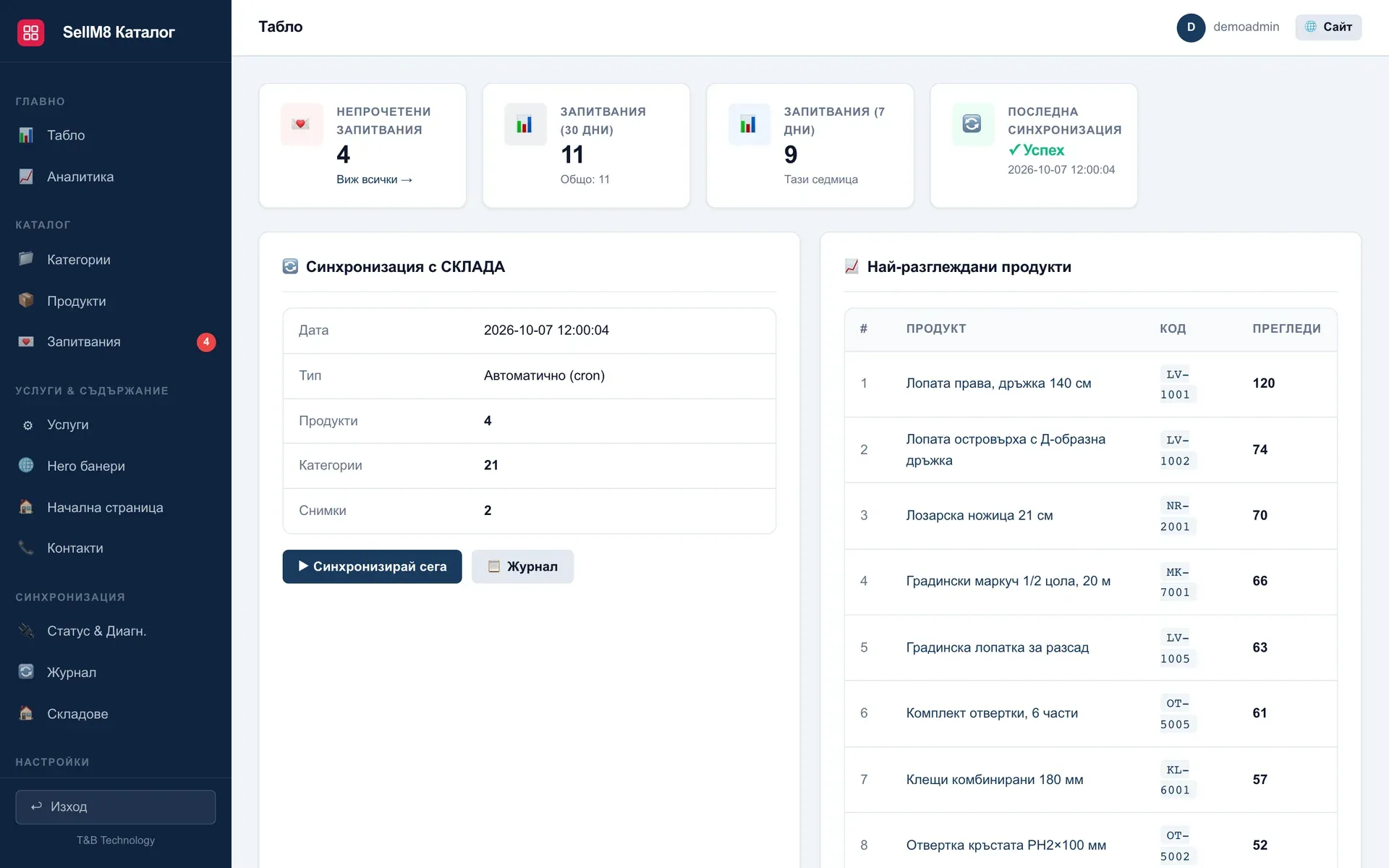
Step 7 of 12
The admin dashboard
Unread enquiries, the last sync with the warehouse and the most viewed products. Click "Запитвания" (Enquiries).
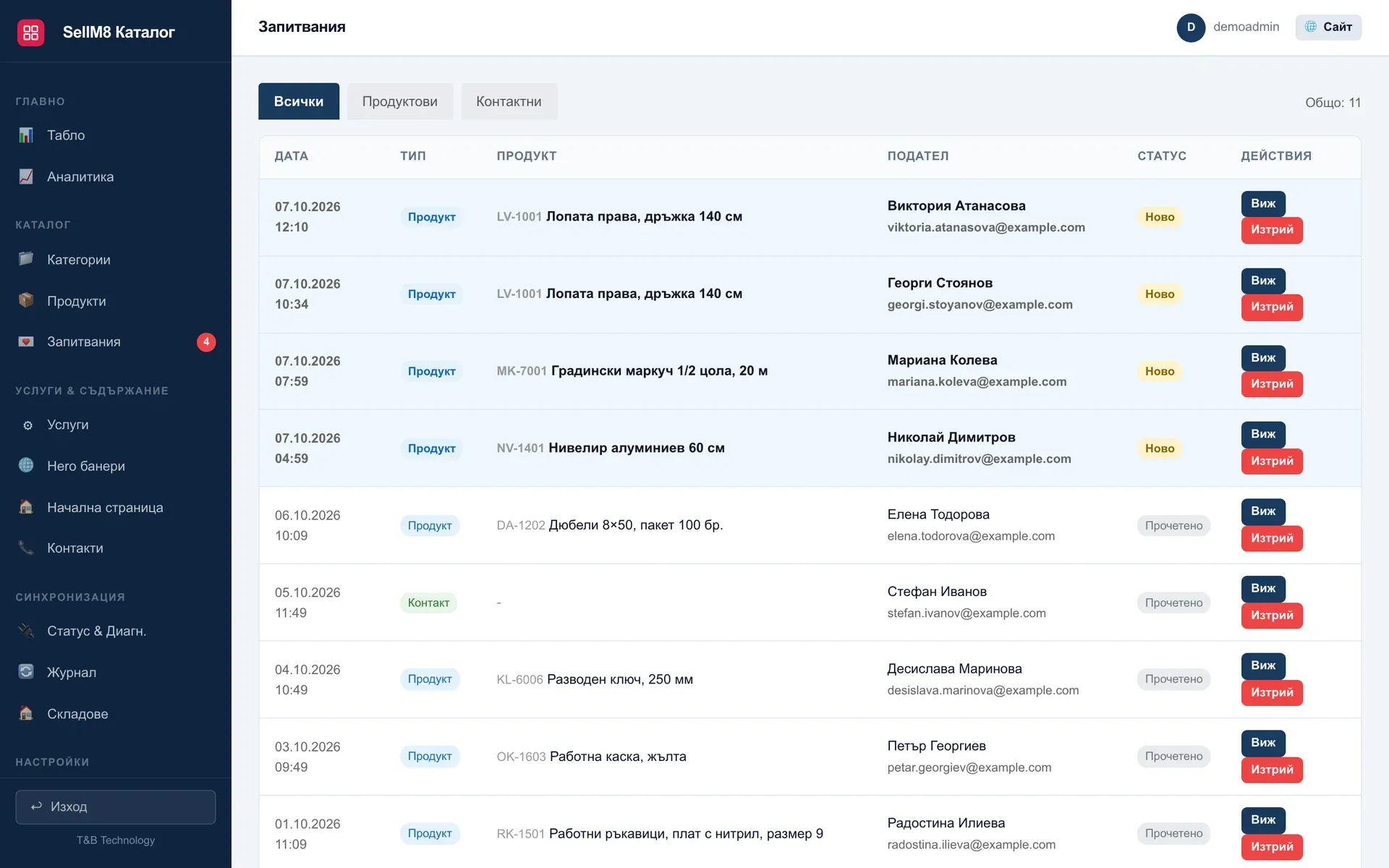
Step 8 of 12
The new enquiry is at the top
With the status "Ново" (New), the product and the customer's contact details. Now to the prices — click "Категории" (Categories).
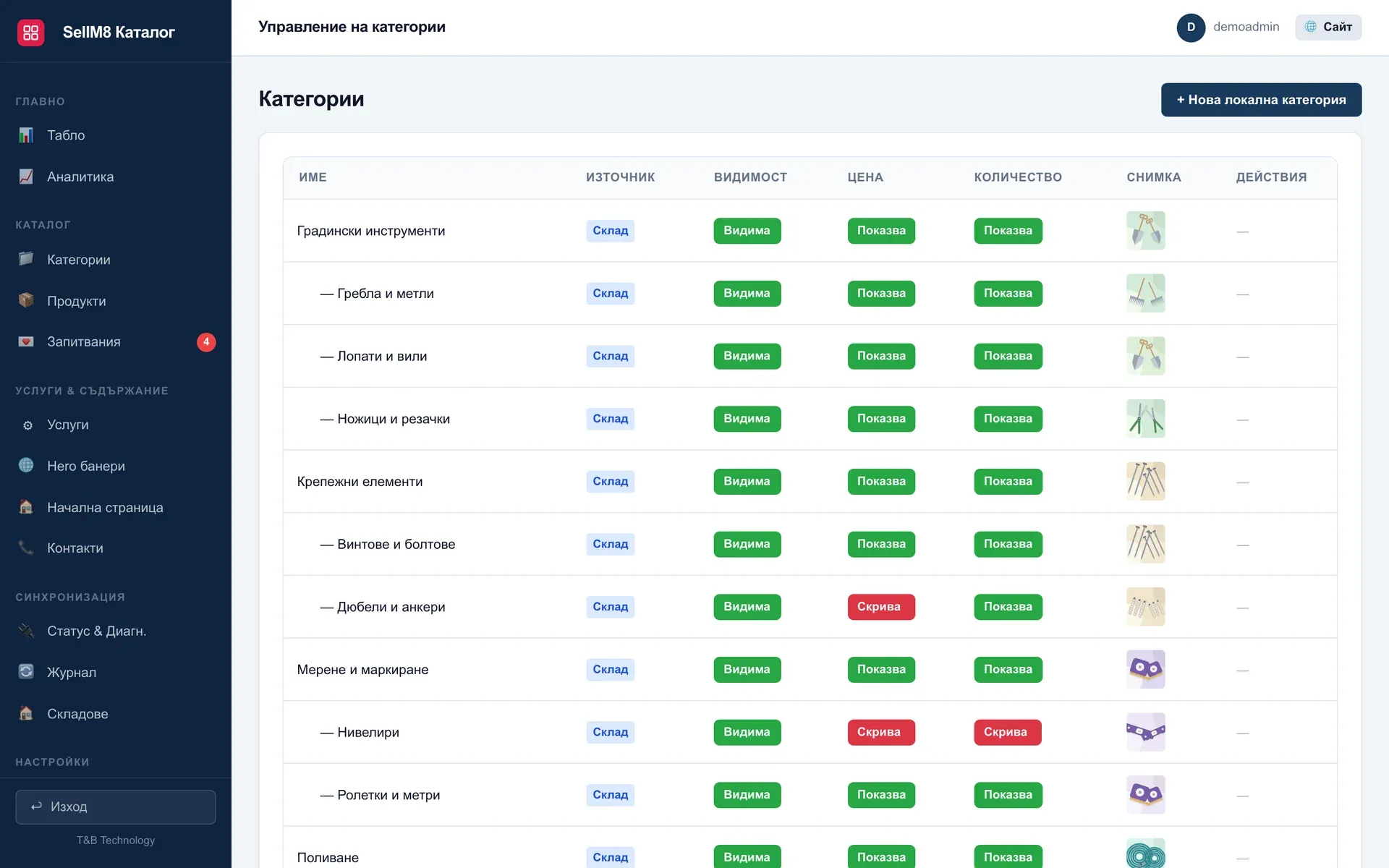
Step 9 of 12
What is shown for each category
For every category you decide whether the price and the quantity are shown. Click "Показва" (Shows) in the "Цена" (Price) column next to "Лопати и вили".
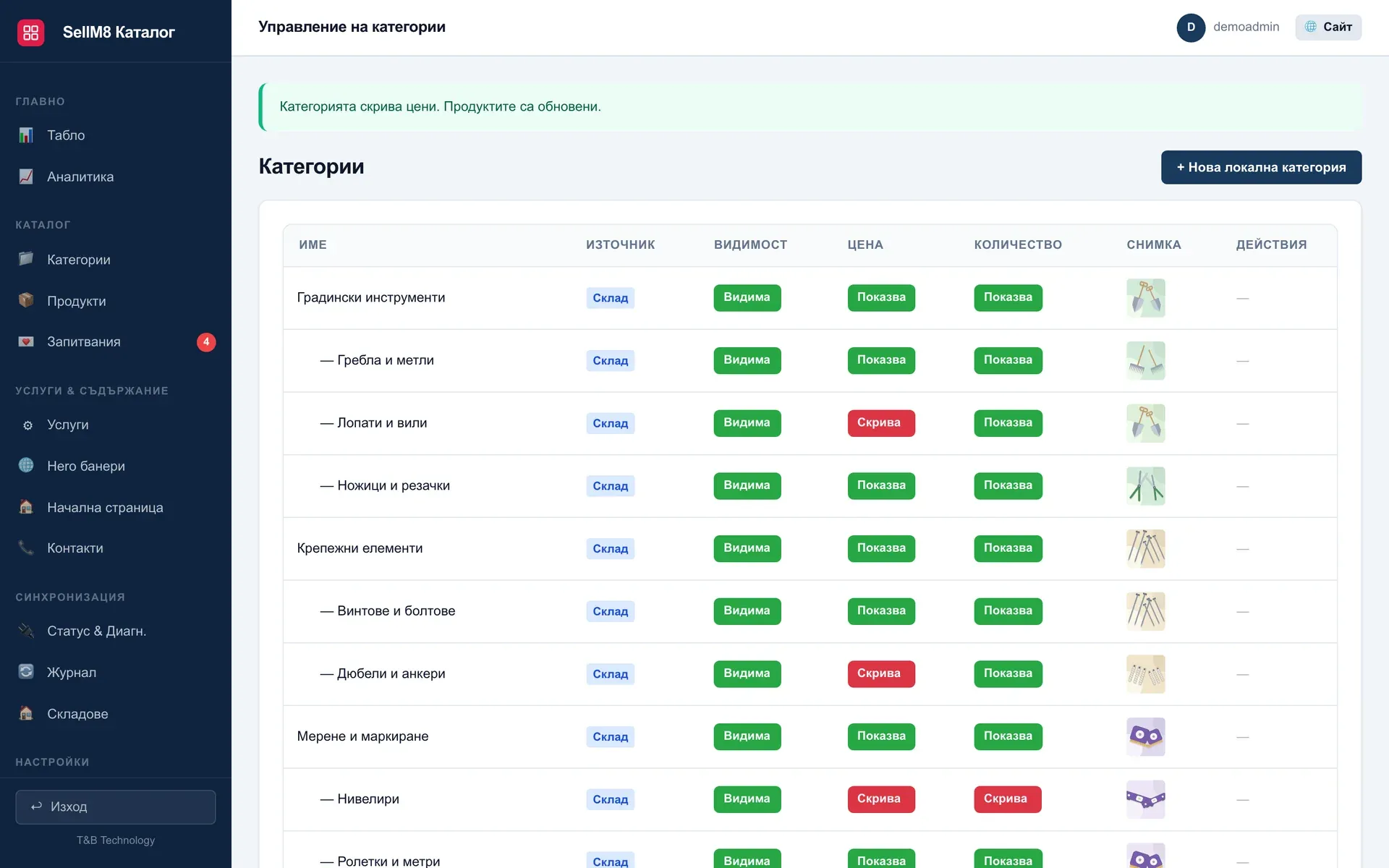
Step 10 of 12
The category's prices are hidden
The switch is now red — "Скрива" (Hides). Click "Сайт" (Site) at the top right to see the catalogue.
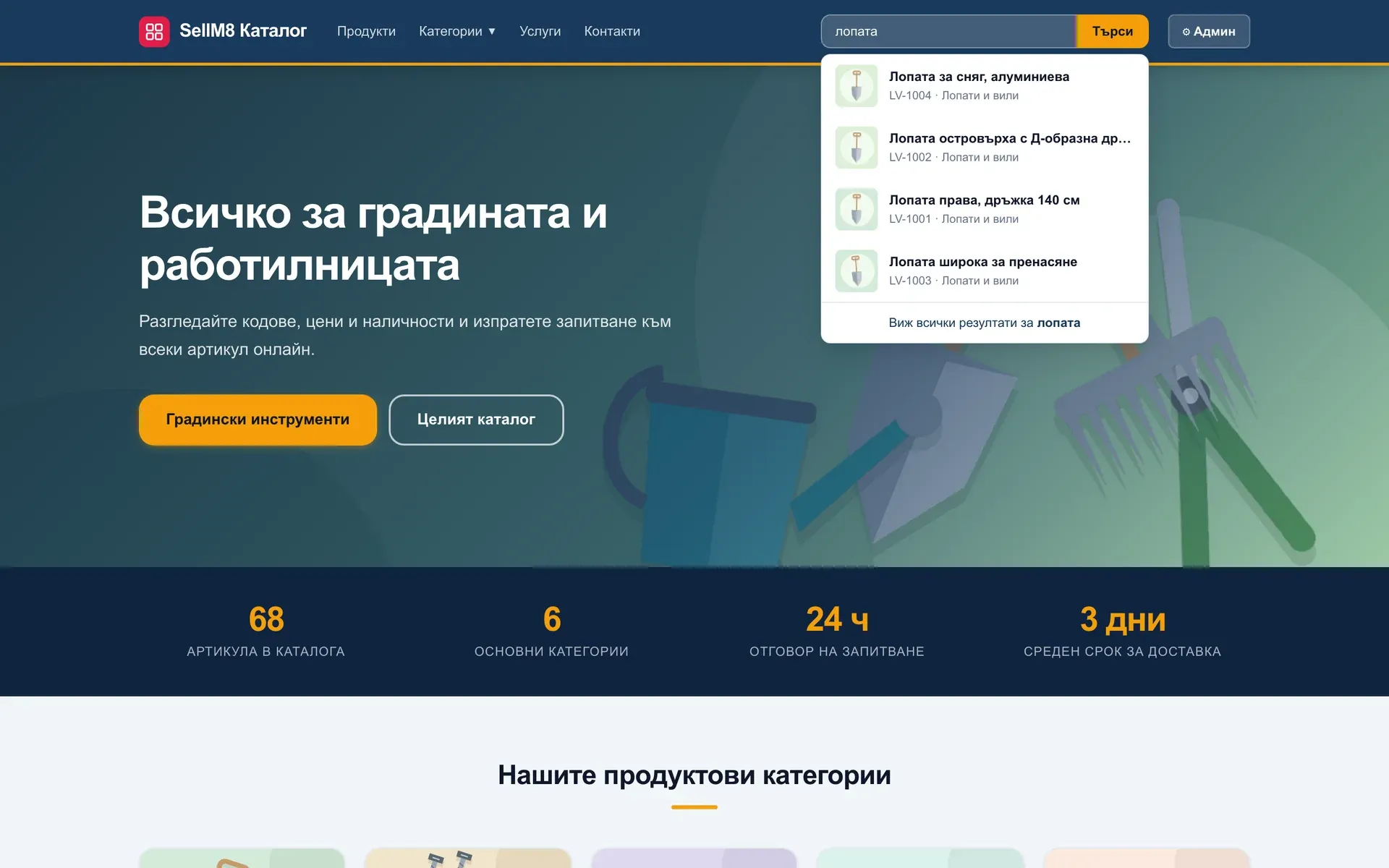
Step 11 of 12
Searching the catalogue
"лопата" (spade) is typed in and the catalogue suggests products as you type. Click "Търси" (Search).
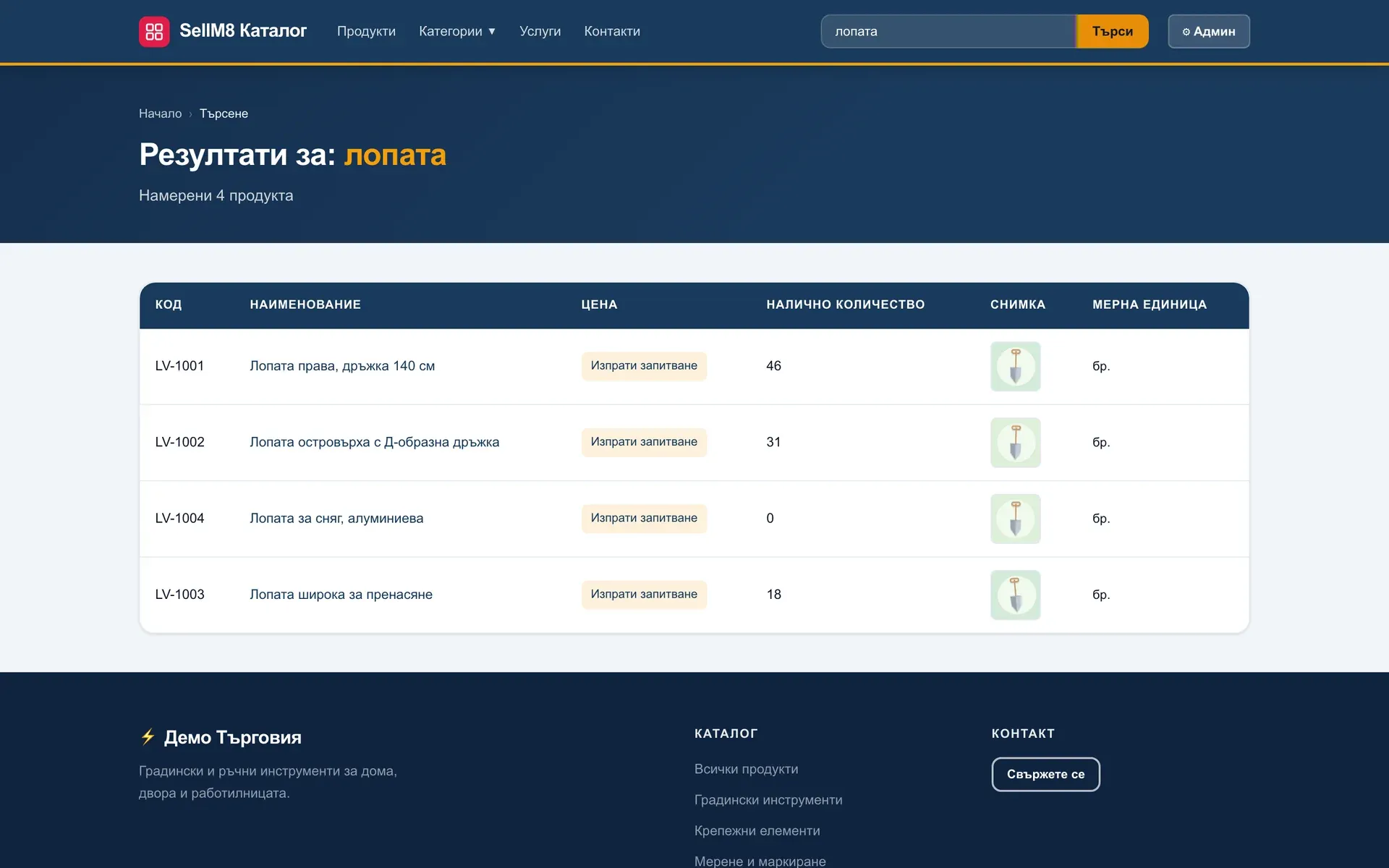
Step 12 of 12
No prices — an enquiry instead
"Изпрати запитване" (Send enquiry) appears where the price used to be, and stock stays visible. One switch decides when a price is public and when it is given on request.
Book a demo with your own dataThe screens come from the program itself, captured with sample data. The interface is shown in Bulgarian.
Put your products online without typing them in again
We will show you how the catalogue fills itself from the warehouse and how enquiries arrive.
- Reply within one working day
- No obligation to buy
- Demo with your own examples